On a computer, open the video, click …more under the title, then Show transcript. YouTube opens a panel with the captions line by line, a timestamp on each line. That is enough to find a quote. It is not a document you can read, study from or send to someone.
For that, paste the link into Braindump. It fetches the audio, transcribes it, and gives you a title, a short summary and the full text in paragraphs, ready to export as PDF, DOCX or TXT. It also works on videos where YouTube shows no transcript at all, because it does not rely on captions.
The short answer
YouTube’s transcript is the captions of the video shown as a list. It exists only when the video has captions (written by the creator or generated automatically), it splits the speech every few seconds, and it puts a timestamp on every line. You can read it and copy it, but there is no download button and no summary.
Braindump takes a YouTube link instead of a file. Paste the link, pick the language, and the transcript arrives in your notes a few minutes later, even if you close the tab. A free account gets 3 YouTube links, and free notes under 30 minutes come back complete. Pro ($16.99 a month or $69.99 a year) takes videos up to 5 hours, counted against 1,200 minutes a month. It works on public and unlisted videos in 59 languages. It does not work on private, age-restricted or live videos, and it does not make subtitle files or translate.
How to see the transcript on YouTube
On a computer:
- Open the video on youtube.com.
- Under the title, click …more to expand the description.
- Scroll to the end of the description and click Show transcript.
- The panel opens on the right. Click any line to jump to that moment, or type in the search box to find a word.
In the YouTube app on iPhone or Android, tap the description under the video, scroll down and tap Show transcript.
If there is no Show transcript button, the video has no captions. YouTube’s automatic captions cover 67 languages, but YouTube says they can fail when the video is too long, the audio is poor, there is a long silence at the start, people talk over each other, or processing is not finished yet.
Why YouTube’s transcript is hard to use as notes
YouTube’s automatic captions have improved. On the lecture above they come with punctuation and capital letters. The problems are elsewhere:
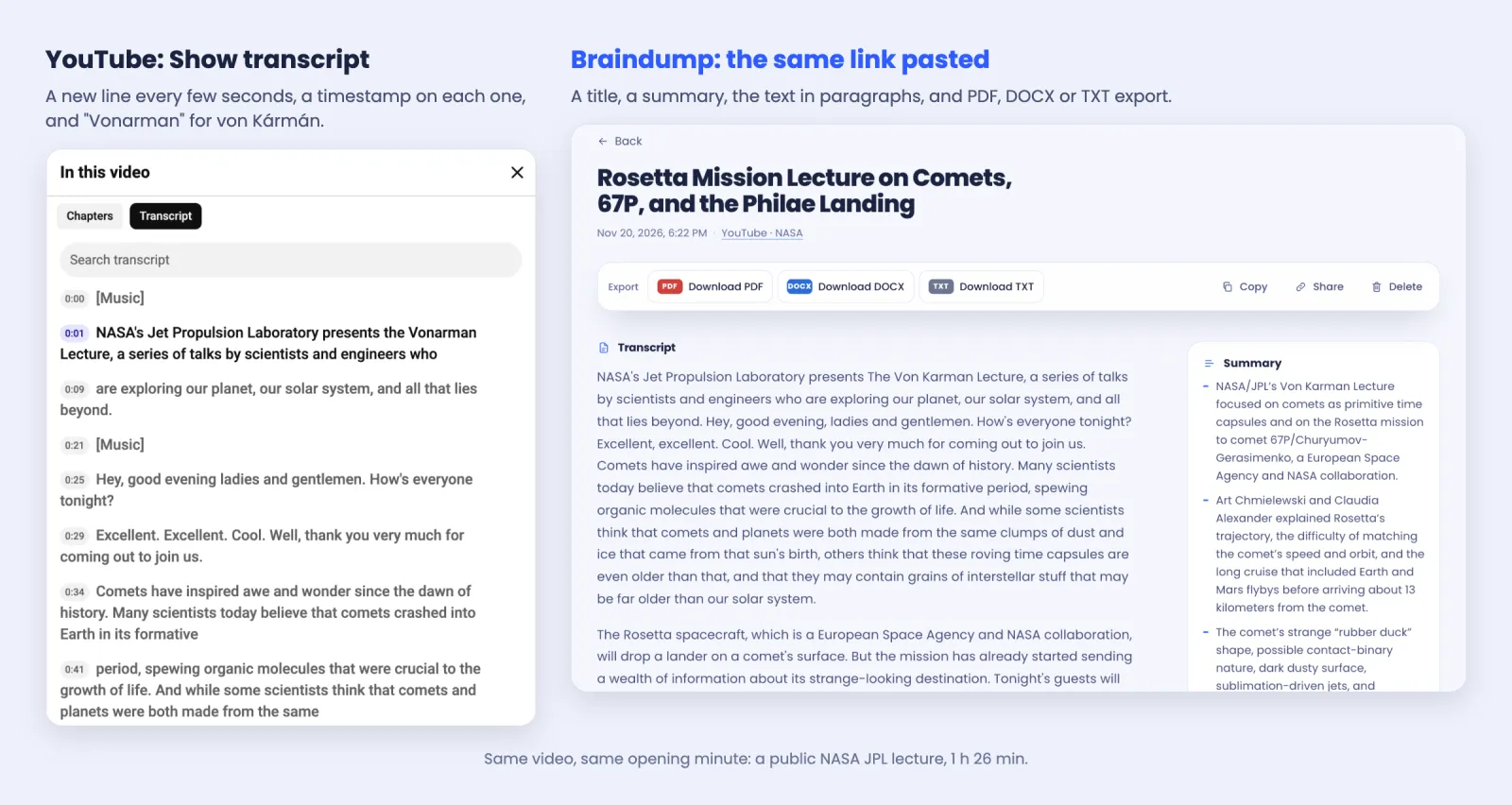
- It is cut into caption lines, not sentences. A new line starts every 6 to 10 seconds, often mid-sentence (“crashed into Earth in its formative” / “period, spewing organic molecules”).
- A timestamp on every line. Copy the panel and you copy hundreds of timestamps with it. The 86-minute lecture above has 636 of them to delete by hand.
- Names and terms get mangled. The first sentence of this lecture says “the Vonarman Lecture” for the von Kármán Lecture. Braindump wrote “Von Karman”.
- No title, no summary, no file. You get the raw captions and nothing else.
- No captions, no transcript. Plenty of videos have no Show transcript button at all.
For checking one quote, the panel is fine. For a lecture you need to study from, an interview you need to quote, or a talk you want to share as a document, you need the text in another shape.
Turn a YouTube link into a clean transcript with Braindump
- Copy the video link from the address bar or the Share button. Links from youtube.com, youtu.be, Shorts and the YouTube app all work.
- Open the Braindump web app, sign in (email code, Google or Apple, no password) and choose the YouTube link tab.
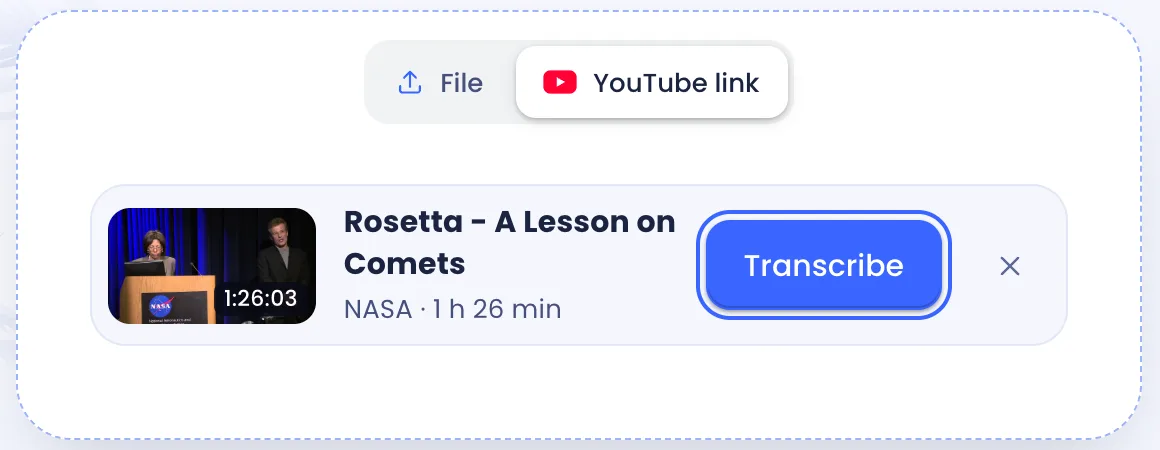
- Paste the link. Braindump shows the video’s title, channel and length so you can check it is the right one.
- Click Transcribe, pick the language spoken in the video, and start.
- The note appears in your list with “Getting audio from YouTube…” and then the progress of the transcription. You can close the tab; the note finishes on its own.
What you get is a note with:
- a title written from the content, not the video’s own title;
- a summary of the main points in a few bullets;
- the full transcript in paragraphs, without timestamps;
- speaker labels if you turn them on before starting, for interviews and panels with 2 or 3 voices;
- PDF, DOCX and TXT export, a copy button and a share link;
- a link back to the video.
What an 86-minute lecture looked like
We ran the NASA lecture in the image above through Braindump to see what comes back. The video is 1 hour 26 minutes long: two speakers on stage, then audience questions.
- Title: “Rosetta Mission Lecture on Comets, 67P, and the Philae Landing”.
- Summary: 6 bullets covering the mission, the comet’s shape, the instruments, the landing plan and the audience questions, with the speakers’ names.
- Transcript: about 12,300 words in 110 paragraphs.
YouTube’s panel for the same video has 636 timestamped caption lines. Both are the same speech. One is a list to scroll, the other is a document you can read, search and send.
YouTube transcript vs Braindump
| YouTube Show transcript | Braindump | |
|---|---|---|
| Needs captions on the video | Yes | No, it transcribes the audio |
| Layout | Caption lines every few seconds | Paragraphs |
| Timestamps | On every line | None (one start time per speaker turn if labels are on) |
| Title and summary | No | Yes |
| Download | No, copy by hand | PDF, DOCX, TXT |
| Speaker labels | No | Yes, optional |
| Cost | Free | 3 free links, then Pro |
| Subtitle files | Creators can download their own in YouTube Studio | No |
Other ways to get a YouTube transcript
- Caption-grabber sites and browser extensions. Most of the free “YouTube transcript generator” sites read the captions YouTube already has. They are quick and save you the copying, but when a video has no captions they have nothing to give you, and their text has the same misheard words.
- Gemini. You can paste a YouTube link into Gemini and ask for a summary or study notes. Google describes this as understanding the video, not as transcription, so you get Gemini’s answer rather than a complete text you can check line by line.
- Gemini Notebook (formerly NotebookLM). It accepts a public YouTube link as a source, but it imports only the transcript the video already has. No captions, no import, and videos uploaded in the last 72 hours may not import yet.
- ChatGPT. OpenAI documents no way to open a YouTube link and transcribe it. ChatGPT can analyse a video file you upload, with OpenAI’s warning that the analysis can be incomplete. For audio files, see can ChatGPT transcribe audio.
- Your own videos. In YouTube Studio, open Subtitles, pick the video, click Edit next to the language, then Options and Download. If you still have the original recording, you can also upload that file to Braindump directly.
What Braindump does not do with YouTube links
- Private, age-restricted and live videos. It cannot fetch them. Unlisted videos work. If you own the video, upload the original file instead.
- Playlists and channels. Paste one video link at a time.
- Subtitles. It does not make SRT or VTT files, and there are no timestamps on one-speaker notes. Use YouTube Studio or a subtitle tool for captions.
- Translation. The transcript stays in the language spoken. Pick that language before you start; there is no automatic detection.
Use it for videos you have a reason to work with: a lecture you are studying, a talk you are citing, an interview for research. For lectures you record yourself, see how to transcribe lecture recordings and how to record lectures. Plans and limits are on the pricing page.